
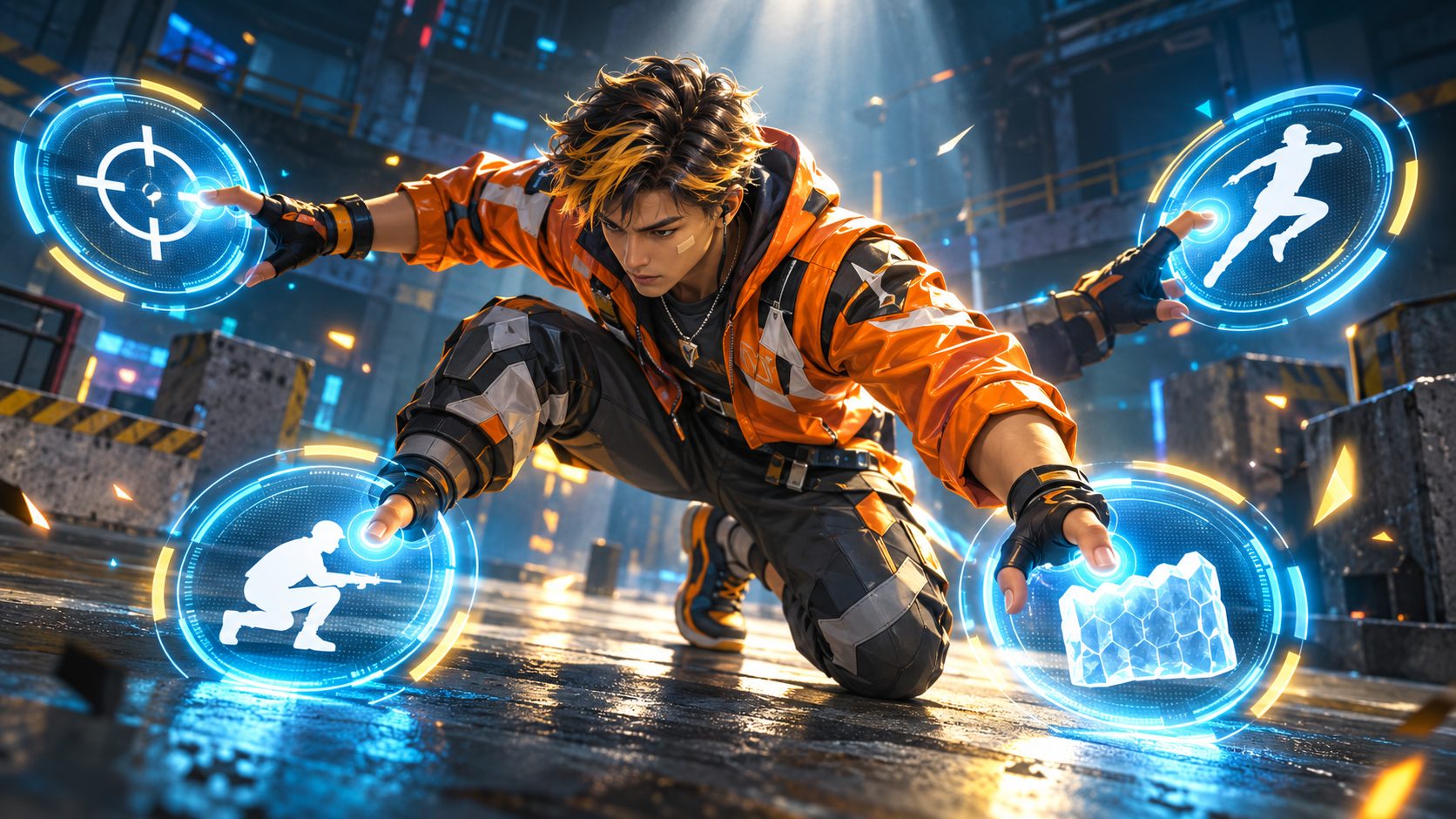
Free Fire HUD codes are official share codes that copy another player’s button layout into your game in one tap, and since update OB52 the pro layouts are already inside Settings, in the HUD section, under recommendations. The box to paste a code sits in the bottom left corner of that recommendations page. Pick a layout that matches how many fingers you use, 2, 3 or 4, and watch one detail: many codes now carry the creator’s sensitivity too.
2, 3 or 4 fingers: pick the right code first
“Fingers” is simply how many fingers touch the display at the same time. It is your grip, not a game option, and a HUD code only works if it was made for the same grip.
| Grip | How you hold it | Good for | Hard part |
|---|---|---|---|
| 2 fingers | Both thumbs only | New players, small devices | You cannot aim and shoot smoothly at once |
| 3 fingers | Two thumbs plus left index on top | Most players moving up | Training the index to fire or jump |
| 4 fingers (claw) | Both thumbs and both index fingers | Fast gloo walls while aiming | Weeks to feel natural |
A 4 finger code is useless if you play with two thumbs. The buttons land where your fingers never reach. Choose by grip, not by how famous the creator is.
How to paste a HUD code in Free Fire
- Open Settings and go to the HUD section.
- Enter the HUD recommendations page, where layouts shared by pro players appear.
- Tap the code tool in the bottom left corner. It moved there with OB52, so it is not where older videos show it.
- Paste the code and apply it.
- When the game asks whether to sync the sensitivity that comes with the layout, decide carefully (see below).
- Go to the Training Ground before playing a real match.
The sensitivity hidden in the code
Since OB52, recommended pro HUDs and their share codes include sensitivity as well as button positions. If you accept the sync without thinking, the aim numbers you have used for months are replaced. That is why some players copy a “perfect” HUD and suddenly miss everything: it is not the buttons, it is the new sensitivity.
The safe order: first apply only the buttons. Once they feel comfortable, test the pro’s sensitivity separately in training and keep whichever works better.
Sharing your own HUD by link or QR
Update OB53 added more ways to share a layout: on social media, with friends inside the game, as a link or as a QR code. That is why HUDs now also circulate as images with a QR on them. Both forms come from Free Fire itself, so a friend can send you their exact setup without any outside site.
The same update brought Smart Adjust. According to Garena, it studies where you touch and how you use the HUD, and suggests changes. Play a few matches with a new layout, then let it suggest tweaks.
Buttons the game adds on its own
Even a perfect layout can get new buttons. Update OB55 added a follow mechanic: when a teammate you can follow is near, a follow button appears in the HUD and your character moves to the closest line by itself. The buy button of vending machines also stays visible if you walk into their zone while using an inhaler or an energy drink.
If a button suddenly covers another after an update, the code is not broken. Check your layout in training and move what is in the way.
Starting layouts by grip
2 finger layout
Left thumb: joystick low and left. Right thumb: fire button large in the lower right, with crouch and jump close to it. Gloo wall above the fire button, reachable with a small slide.
3 finger layout
Move the left fire button to the top left corner for your index finger. Your right thumb keeps the camera moving while you shoot. Jump stays on the right, near the scope.
4 finger claw layout
Left index fires from the top left; right index handles gloo wall and jump in the top right. Thumbs stay on joystick and camera all the time. Make gloo wall and fire buttons the biggest on the layout.
Use these as a base, then adjust size and position to your hand.
HUD code lists on other sites
Many pages publish lists of “best 2 finger HUD codes” or “pro 4 finger codes”. Some are not even gaming sites, and their titles still mention past years. A HUD code cannot steal an account, because it never needs your ID or password. The risk is the page around it: if it asks you to install an app “to see the code” or to enter your ID, it is the same bait as the diamond generators and panels. A real HUD code is pasted inside the game and needs nothing else.
Switching grips without losing ranked points
- Learn the new grip in training and casual matches, never in ranked.
- Move one button at a time. If you change five at once, you will not know which one bothers you.
- Give it several days. Fingers need time to learn the new spots.
Frequently asked questions
Can I save more than one HUD
Keep the code of your current layout before applying a new one. If the new layout does not suit you, paste your old code back.
Do HUD codes work in Free Fire MAX
HUD settings are part of the same game and account, so the HUD tools work the same way in Free Fire MAX.
Can using someone’s HUD get me banned
No. Sharing and applying HUD codes is an official feature. Bans come from apps and modified files, not from layouts.
Why does my code show as invalid
Check that you copied it complete with no spaces at the ends. Codes made before an update may also stop applying after the HUD system changes.

Show comments 0
Write the first comment.