
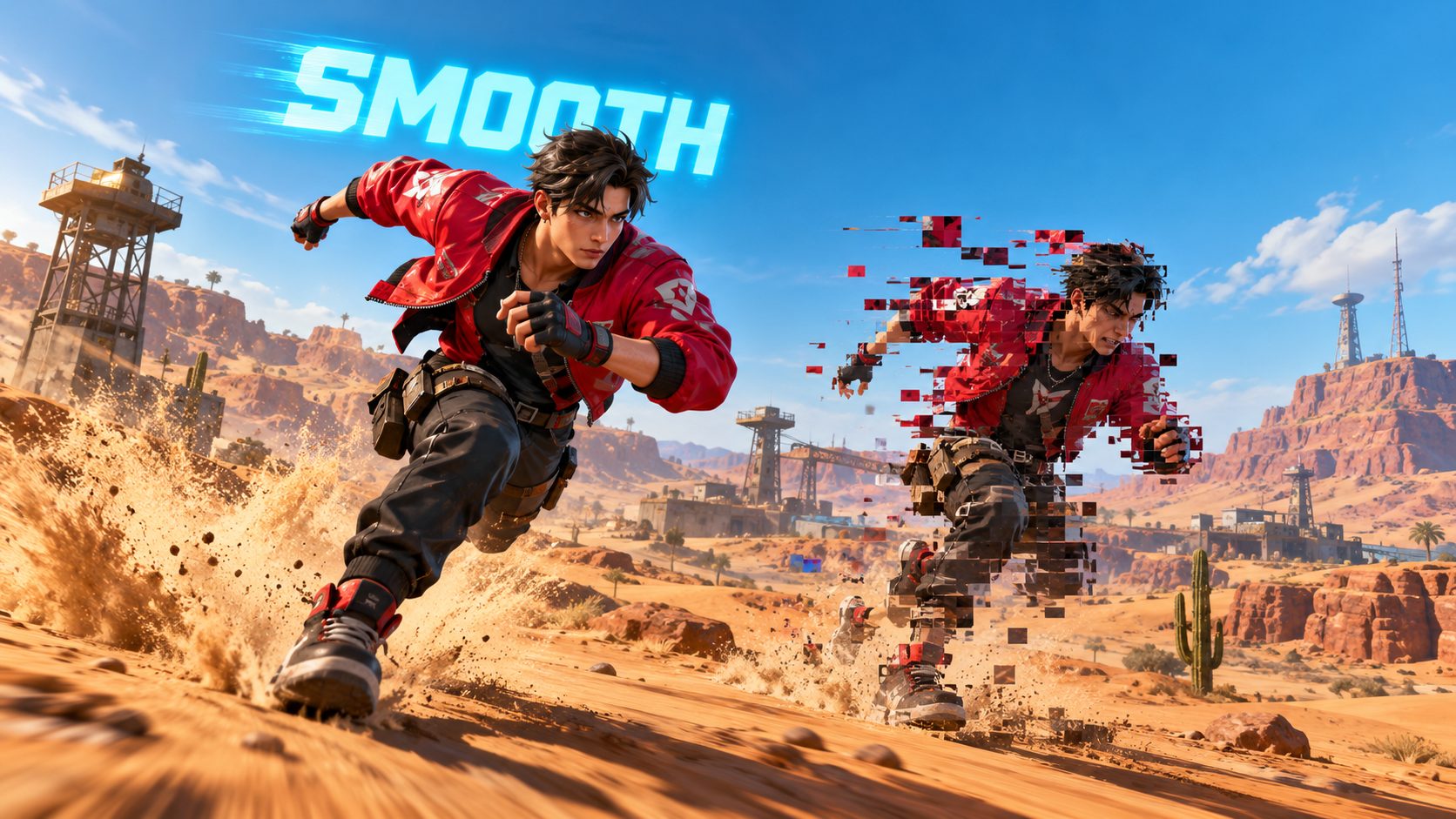
The Free Fire best graphics settings for no lag are the ones Garena’s own support gives for devices that overheat: Graphics on Smooth, FPS on Normal and auto scale turned off. All three are in the gear icon at the top right of the main lobby. Start there, play two or three matches, and only raise one level if the game runs with room to spare.
That is the in-game part. Lag has three different causes: your device, your connection and your settings. Fix the wrong one and nothing changes, which is why so many “no lag sensi” videos do nothing for you.
Here is how to tell which lag you have and the exact fix for each one.
Which lag do you have
| What you see | Cause | Fix |
|---|---|---|
| Choppy frames, stutter when you turn | Device | Graphics settings below |
| Enemies teleport, shots do not register | Connection (ping) | Network steps below |
| Device gets hot, FPS drops after 10 minutes | Heat | Smooth + Normal FPS, no charging |
| Game closes by itself | Memory or storage | Close apps, clear cache, reinstall |
Free Fire graphics settings, value by value
Open the gear icon, then the Graphics tab.
- Graphics: Smooth. It is the only quality level Garena names in its help articles for lag and heat. It removes shadows and detail that cost frames.
- FPS: Normal. High FPS looks better only if your device can hold it. If it cannot, the frame rate jumps up and down, which feels worse than a stable Normal.
- Auto scale: off. When it is on, the game changes the resolution by itself during the match. Turning it off keeps the image steady.
- Shadows: off if your version shows the option.
If after a few matches everything feels smooth and the device stays cool, try Standard graphics or High FPS, but only one change at a time.
Where to start by device type
| Your device | Graphics | FPS | Auto scale |
|---|---|---|---|
| 2-3 GB RAM, gets hot | Smooth | Normal | Off |
| 4 GB RAM, mid-range | Smooth, try Standard | Normal, try High | Off |
| 6 GB RAM or more | Standard | High if stable | Off |
The test is simple: play a full BR match. If the device is warm but not hot and the final zone does not stutter, you can keep the setting. If the last circle drops frames, go back one step. The final zone is the heaviest moment of any match, so that is the one that decides.
Free Fire or Free Fire MAX on a weak device
Garena publishes the requirements on its support site. They show why MAX lags on budget devices:
| Android | Minimum | Recommended |
|---|---|---|
| Free Fire | 1 GB RAM, 1.5 GB storage, Android 4.4 | 3 GB RAM, 3 GB storage, Android 7 |
| Free Fire MAX | 2 GB RAM, 2.5 GB storage, Android 4.4 | 4 GB RAM, 4 GB storage, Android 7+ |
MAX asks for double the RAM at minimum and an octa-core processor in the recommended spec. If your device is close to the minimum, normal Free Fire is the one that will run without lag. On iPhone, the store page decides: it currently asks for iOS 12 or later.
Before every match: five device fixes
Garena’s guide for a slow game has eight steps. Lowering graphics is one; these are the others that matter most:
- Battery saver off. It slows the processor on purpose.
- Close background apps. Every open app takes RAM the game needs.
- Do not play while charging. Charging adds heat, and heat lowers FPS.
- Clear the cache of Google Play Services and of Free Fire in Settings, Apps, Storage. Only do this if your account is linked to Google, Facebook or another network: the path ends at “Clear data”, and a guest account can be lost there.
- Update the system to the latest version available for your device.
If nothing works, uninstall and install the game again from the official store.
Free Fire high ping: lag that settings cannot fix
When characters move in jumps, items do not load and the controls do not respond, Garena says that is not a game bug but the quality of your connection to its servers. No graphics value changes that. Garena’s steps:
- Restart the device to reset network processes.
- Switch between Wi-Fi and mobile data to see which one fails.
- Move to a place with better signal.
- Unplug the router for 30 seconds and wait until the lights are stable.
If ping stays high after that, Garena sends you to your internet provider. Apps that promise to lower ping are not part of Garena’s solution, and some change your connection in ways that can flag the account.
Graphics after the lag is gone: aim settings
Once the game runs smooth, your sensitivity may feel different, because more stable frames make the crosshair move more evenly. Retest your sensi in the Training Ground. A sensi built from your device model, like the one in Xenkzone, is a good base to adjust from.
Skip “anti lag” config files, regedits and panels. Nothing in Garena’s guide asks you to install anything, and files that edit the game folder count as cheats.
Frequently asked questions
Is High FPS better than Normal in Free Fire
Only if your device holds it all match. An unstable High FPS feels worse than a steady Normal.
Does lowering graphics improve aim
It does not change your sensitivity, but stable frames make tracking a target easier.
Why does Free Fire lag only in the final zone
More players, gloo walls and effects on display at once. That is when Smooth graphics help the most.
Will clearing the Free Fire cache delete my account
Not if the account is linked. Link a guest account before you clear anything.

Show comments 0
Write the first comment.